

Overview
The AiStrike Qualys Connector enables AiStrike to ingest vulnerability, asset, and security findings data from Qualys into the AiStrike platform. This integration allows security teams to centralize risk visibility, correlate vulnerabilities with asset context, and streamline remediation workflows.◼︎
1. Prerequisites
Before configuring the AiStrike Qualys Connector, ensure the following prerequisites are met.
1.1 Qualys API Server URL
Identify the Qualys API Server URL associated with your subscription (e.g., US1, US2, EU1).
1.2 Create a Qualys User for AiStrike
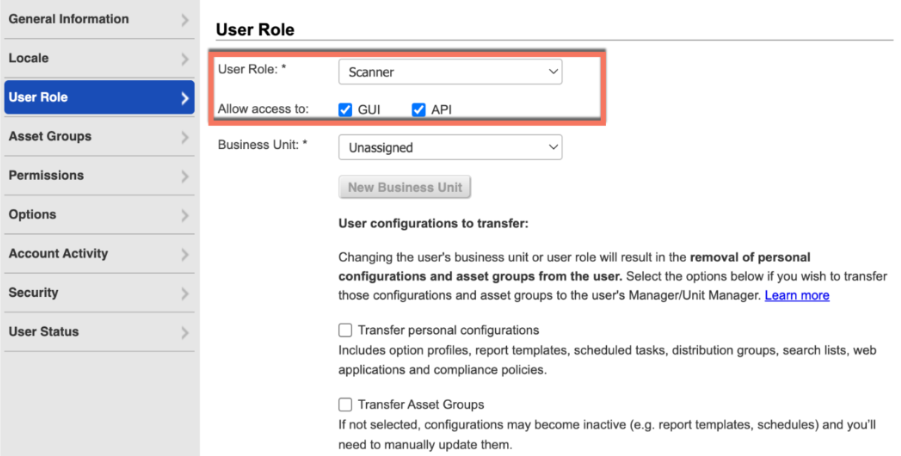
Create a dedicated Qualys service account for AiStrike with the Scanner role and API access enabled.
Use the following user information when creating the account.
User Details
|
Field |
Value |
|---|---|
|
First Name |
AiStrike |
|
Last Name |
Qualys Connector |
|
Title |
AiStrike Connector |
|
|
threat@aistrike.com |
|
Address |
Pleasanton, California, USA |
2. Create Qualys User with Scanner Role
Follow these steps to create the AiStrike service account in Qualys.
-
Log in to your Qualys platform.
-
Navigate to: Administration → User Management
-
Create a new user.
-
Assign the Scanner role to the user.
-
Enable the following access:
-
GUI Access
-
API Access
-
-
Assign relevant (All) Asset Groups that AiStrike should ingest data from.
-
Click Save to create the user.
-
Open the created user and verify:
-
Scanner role assigned
-
API access enabled
-
GUI access enabled
-
3. Configure Required Modules
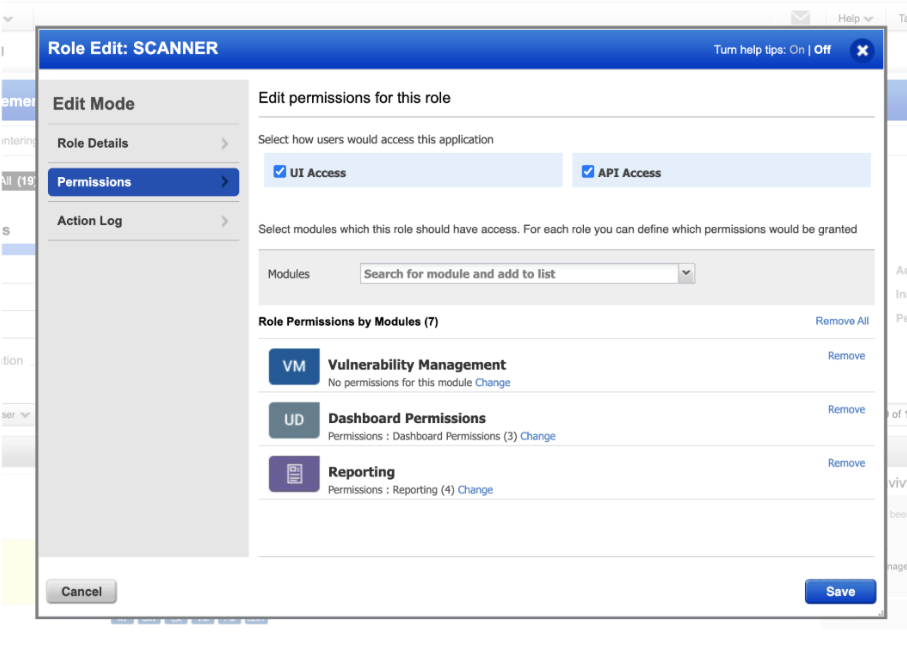
Under the Modules drop-down in the user configuration, enable all the available modules to allow AiStrike to ingest the appropriate data.
Enable:
-
Vulnerability Management
-
Policy Compliance
-
Container Security
-
Asset Management
-
Reporting Service
-
Total Cloud
-
Web Application Scanning
4. Enable CVSS Scoring in Qualys
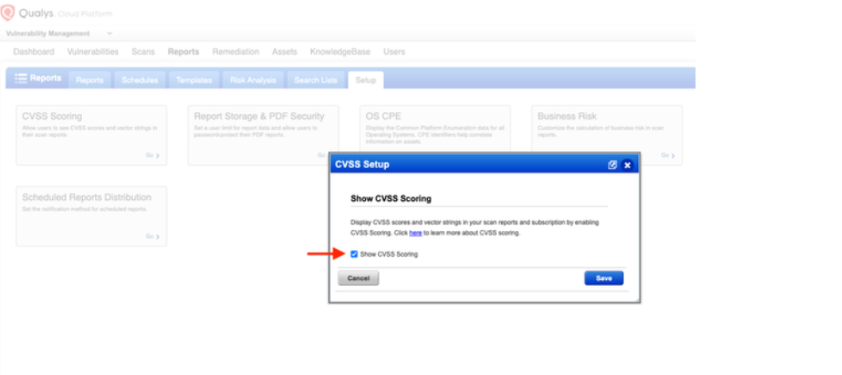
AiStrike uses CVSS scores to prioritize vulnerabilities. CVSS scoring must be enabled in Qualys.
Steps
-
Log in to the Qualys platform.
-
Navigate to: Reports → Setup
-
Click CVSS Scoring.
-
Enable: Show CVSS Scoring
-
Click Save.
5. Configure the AiStrike Connector
After the Qualys user is created, configure the connector in the AiStrike platform.
-
Log in to the AiStrike Platform.
-
Navigate to: Integrations → Connectors
-
Click: Add Connector
-
Select: Qualys
-
Enter the following configuration details.
|
Field |
Value |
|---|---|
|
Connector Name |
AiStrike_Qualys_Connector |
|
API Server URL |
Your Qualys API endpoint |
|
Username |
Qualys service account username |
|
Password |
Qualys service account password |