

This document outlines the steps required to integrate AiStrike with your Splunk instance. The integration allows AiStrike to fetch security events and alerts via the Splunk API & User account for enrichment and analysis.
Prerequisites
You need a Splunk admin account with either of the following (not both):
-
Permission to create users — if you will authenticate with username and password
-
Permission to generate and manage authentication tokens — if you will authenticate with a token
Integration methods
Authenticate in AiStrike with one of the following:
-
A dedicated Splunk user (username and password)
-
An authentication token
You do not need both. If both are set, AiStrike uses the token.
Step 1: Create a Splunk user
Use this path if you will authenticate with username and password.
-
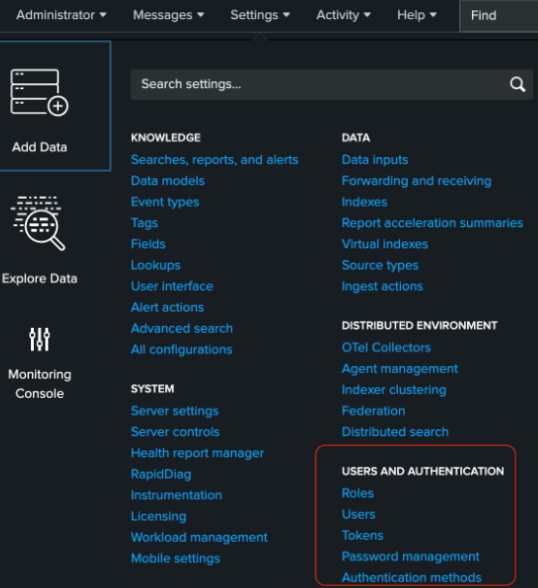
In Splunk, go to Settings → Users.
-
Click New User.
-
Enter a name (for example,
aistrike_integration) and set a strong password.-
These credentials are used in AiStrike as Username and Password.
-
-
In Assign Roles, select a role that includes the Enterprise Security capabilities listed in “Required permissions” below (for example
ess_user). The platform User role alone is not enough to read findings or assets. -
Uncheck “Require password change on next login”.
-
Click Create.
Required permissions
The integration user (or the token owner) needs these Splunk Enterprise Security capabilities. They provide read-only API access and do not grant admin rights.
|
Capability |
Description |
|---|---|
|
mc_investigation_read |
Read findings (SOC alerts). Add this capability to the user’s role, or assign the ess_user or ess_analyst role (both include it). |
To add the capabilities without using ess_user
-
Go to Settings → Roles.
-
Edit the role assigned to the user.
-
Under Capabilities, enable
mc_investigation_read. -
Click Save.
If the user already has a token, you don't need to create a new one. The existing token picks up the updated roles on the next API call.
Step 2: Create an authentication token
Use this path if you will authenticate with a token. Token authentication must be enabled on the instance.
-
Go to Settings → Tokens (under Users and Authentication).
-
Click New Token.
-
Select the user the token should belong to (for example,
aistrike_integration). -
Set Audience (for example,
aistrike_integration). -
Leave Expiration and Not Before empty unless your policy requires an expiry.
-
Click Create.
-
Copy the token immediately and store it securely.
This value is used in AiStrike as Authentication Token.
Step 3: Splunk Management URL
Use the Splunk management URL, including the scheme and port 8089. Do not use the Web UI URL on port 8000.
|
Deployment |
Example |
|---|---|
|
Splunk Enterprise (on-prem) |
|
|
Splunk Cloud |
|
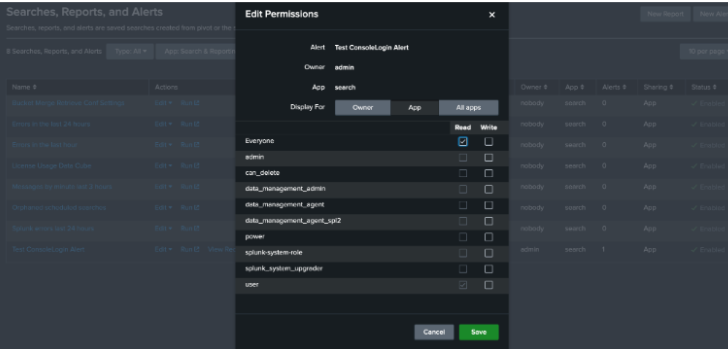
NOTE: Make sure your Splunk "Searches, Reports, and Alerts" has permission to be viewed by "Everyone" or the role "User", which is assigned to the aistrike_integration.
If you have IP restrictions in place, please ensure the following AiStrike IP addresses are allowlisted to access your Splunk instance:
3.135.165.25/32
3.148.24.98/32
3.148.93.249/32
3.14.192.137/32
13.201.28.59/32
18.223.178.199/32
52.15.138.222/32
54.246.180.34/32
63.35.37.74/32
54.220.227.162/32
Fields required for connector configuration
|
Field |
Details |
|---|---|
|
Configuration Name |
A descriptive name for this integration (for example, |
|
Splunk Management URL |
Management URL including port 8089. Not the Web UI on port 8000. |
|
Username |
Dedicated Splunk user (for example, |
|
Password |
Password for that user. Required only if you are not using a token. |
|
Authentication Token |
Token from Settings → Tokens. Required only if you are not using username and password. |
Provide username and password, or an authentication token. Either method is sufficient; you do not need both.