

This guide explains how to integrate a customer's Wazuh server with AiStrike to fetch alerts and monitor your environment.◼︎
Prerequisites
-
The Customer Wazuh server must be reachable from AiStrike IPs on port 9200.
-
Allow the following AiStrike IP addresses in your firewall/security group:
3.135.165.25/32
3.148.24.98/32
3.148.93.249/32
3.14.192.137/32
13.201.28.59/32
18.223.178.199/32
52.15.138.222/32
54.246.180.34/32
63.35.37.74/32
54.220.227.162/32
-
Login credentials for the Wazuh admin user.
Step 1: Log in to the Wazuh Server
-
Open your Wazuh server web console.
-
Log in as administrator.
Step 2: Create an Internal User for AiStrike
-
Navigate to Indexer Management → (Left-hand side hamburger menu icon) → Security.
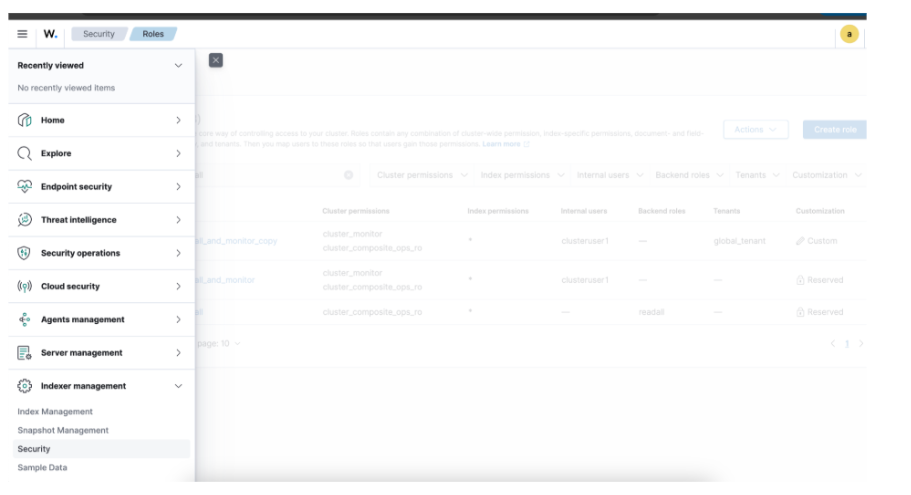
-
Click Internal Users → Create Internal User.
-
Enter the following:
-
Username:
Aistrike_user -
Password: Set a strong password
-
Leave other settings as the default.
-
-
Click Create.
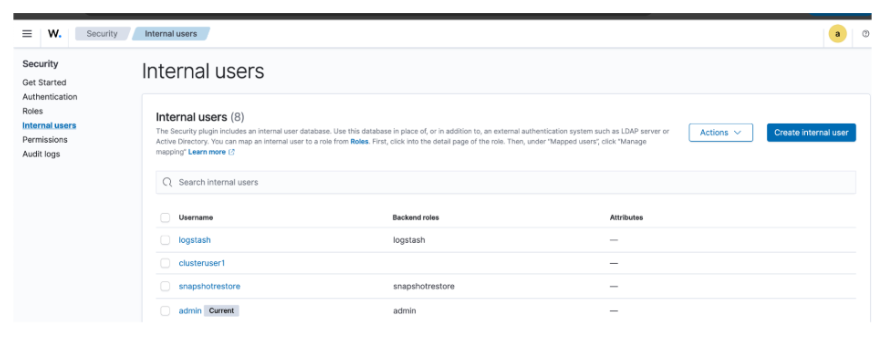
Step 3: Create a Dedicated Role for AiStrike
-
Go to Roles → find
readall_and_monitor→ click on it. -
Click Duplicate Role → name it:
readall_and_monitor_copy_aistrike.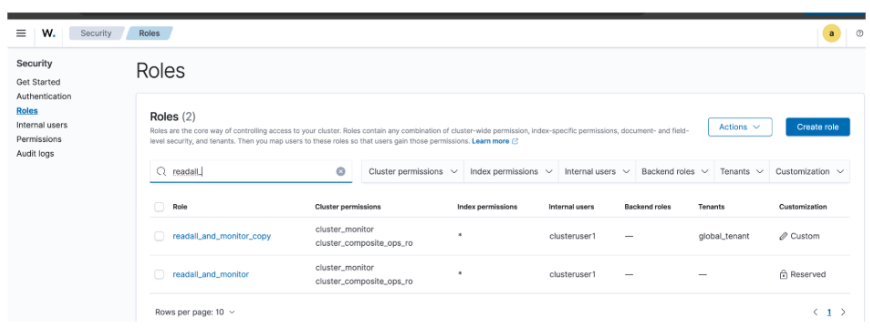
Step 3a: Assign Cluster Permissions
Permission:
-
Cluster_monitor -
Cluster_composite_ops_ro
Step 3b: Assign Index Permissions
-
Index =
* -
Permissions = read, indices_monitor, get, search
Step 3c: Assign Tenant Permissions
-
Tenant =
global_tenant -
permission = Read Only
-
Click Save.
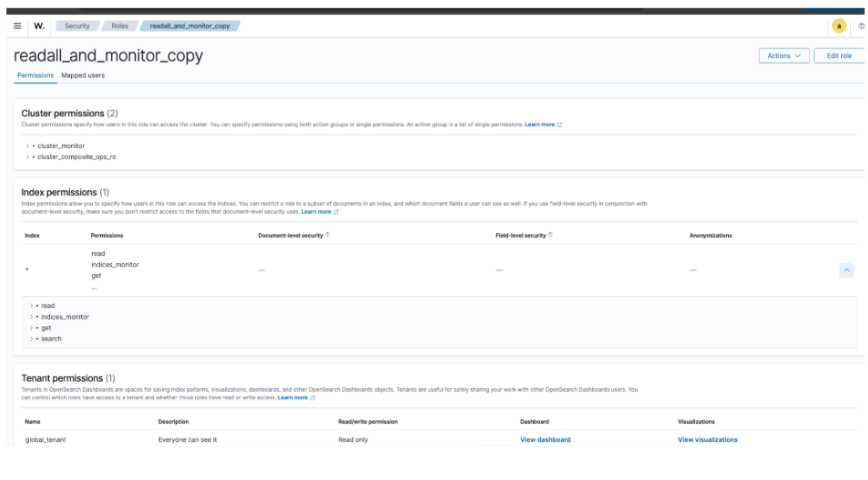
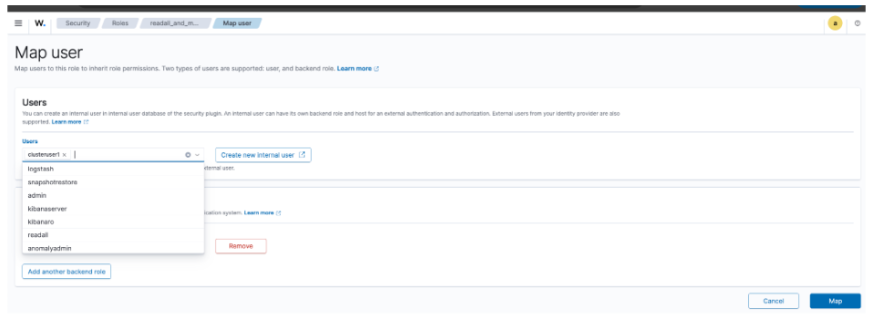
Step 4: Map AiStrike User to Role
-
Open the newly created role:
readall_and_monitor_copy_aistrike. -
Navigate to Mapped Users → click Managed Mapped User.
-
Add the
Aistrike_usercreated earlier. -
Save the mapping.
Step 5: Share Credentials with AiStrike
-
Provide the following credentials to AiStrike, or add them in the AiStrike app:
-
Username:
Aistrike_user -
Password: (The strong password you set)
-
Required attributes:
-
Wazuh Indexer URL:
https://<your-wazuh-server>:9200 -
Username
-
Password
-
ElasticSearch/Opensearch Port: default 9200